
From downloading the app to Wi-Fi pairing and meeting your child's new AI friend — follow along step by step.
Search for 'Cuddles AI' in your app store and install it.
After installation, create an account and log in.

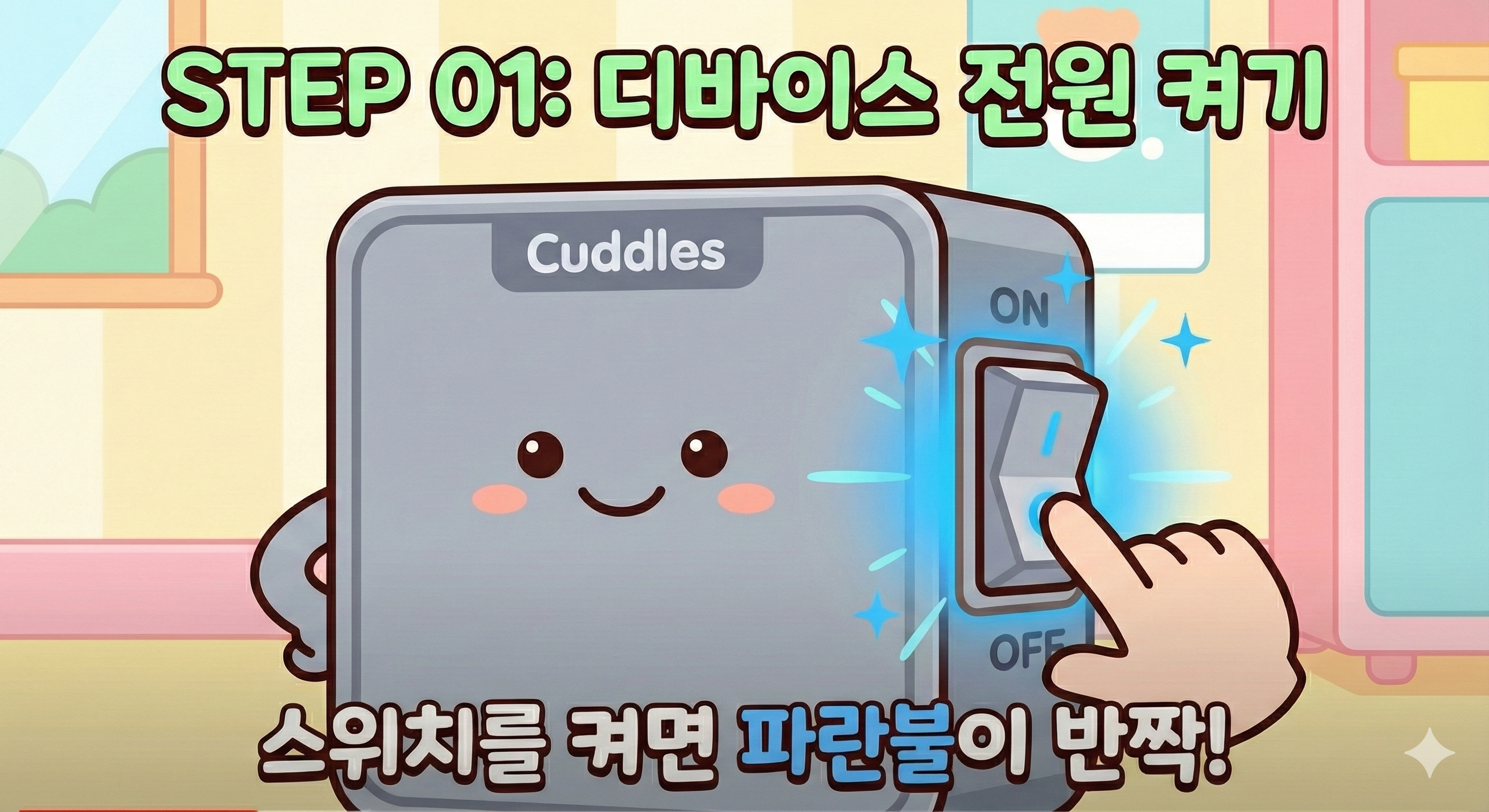
Flip the power switch on the device module inside the plush to ON.
Once powered on, Joy is ready to connect.
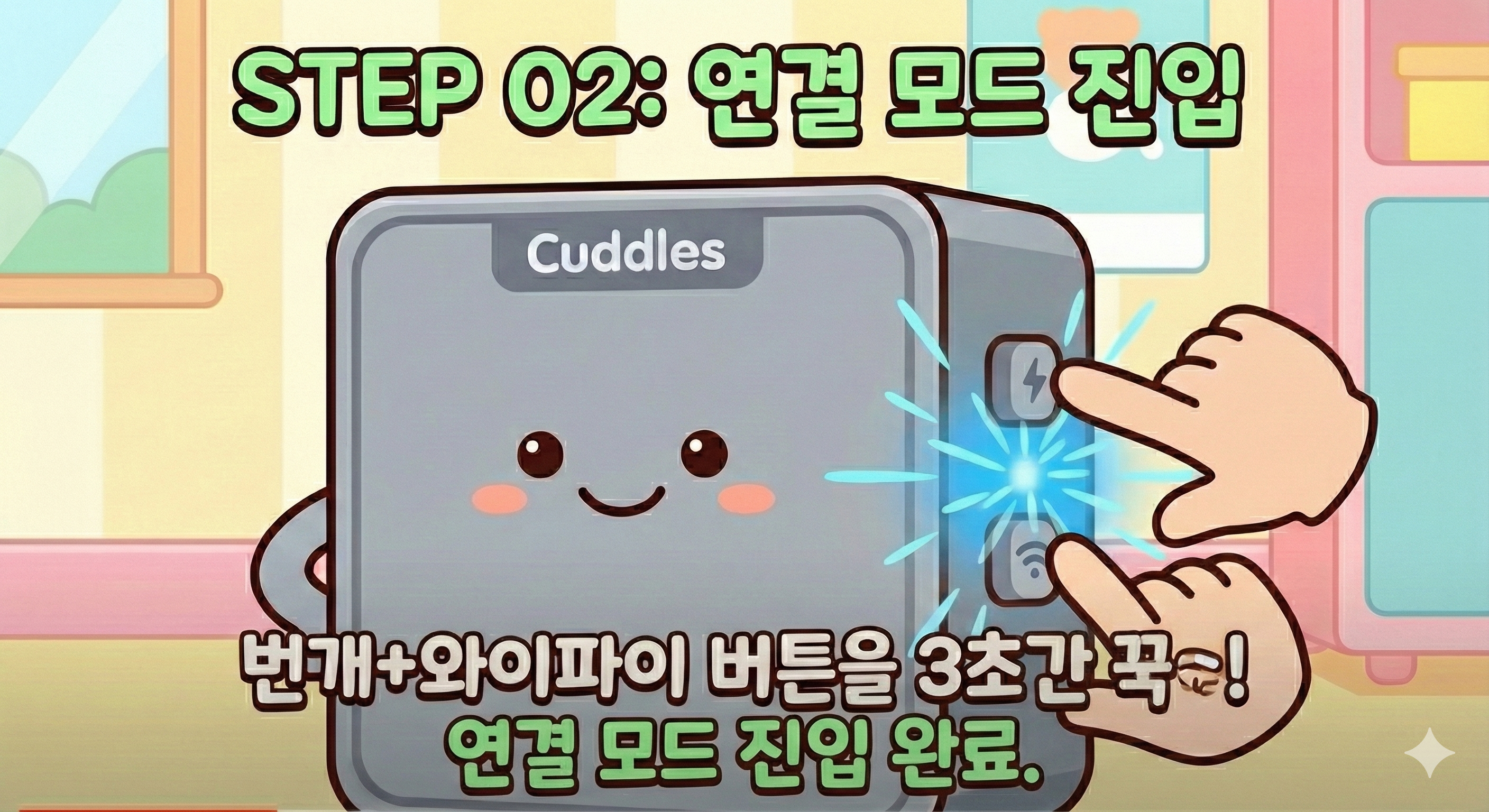
After turning on the device, before the connection sound plays,
press and hold the [Lightning] button for about 3 seconds.
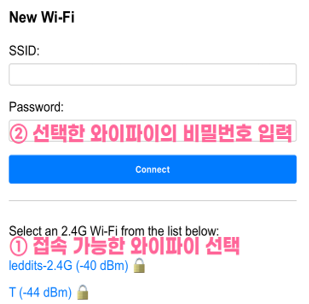
1. Go to your phone's Wi-Fi settings and connect to Cuddles-????.
2. On the setup page that appears, select your home Wi-Fi network and enter the password.
A "Wi-Fi Network Login" window will appear automatically.
If it doesn't appear automatically, tap the "Sign in to network" notification at the top, or go to "Manage router" in your Wi-Fi settings.
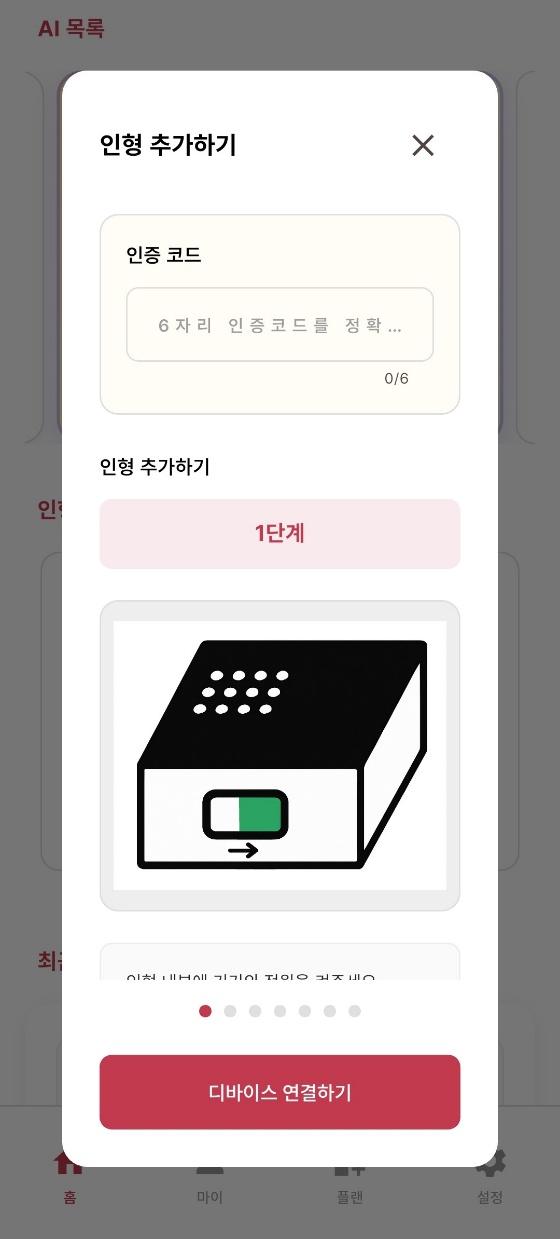
After Wi-Fi setup is complete, Joy will say a 6-digit verification code.
Enter this code on the "Add a Plush" screen in the app to finish registration.
Once registered, set your child's name (nickname) and Joy's personality/voice in the app.
When setup is complete, Joy is ready to chat!
Now say "Hi, Joy!" to wake your friend up.
Tip: Say "Hi" and then pause for just half a beat
before saying "Joy" — it helps with recognition!
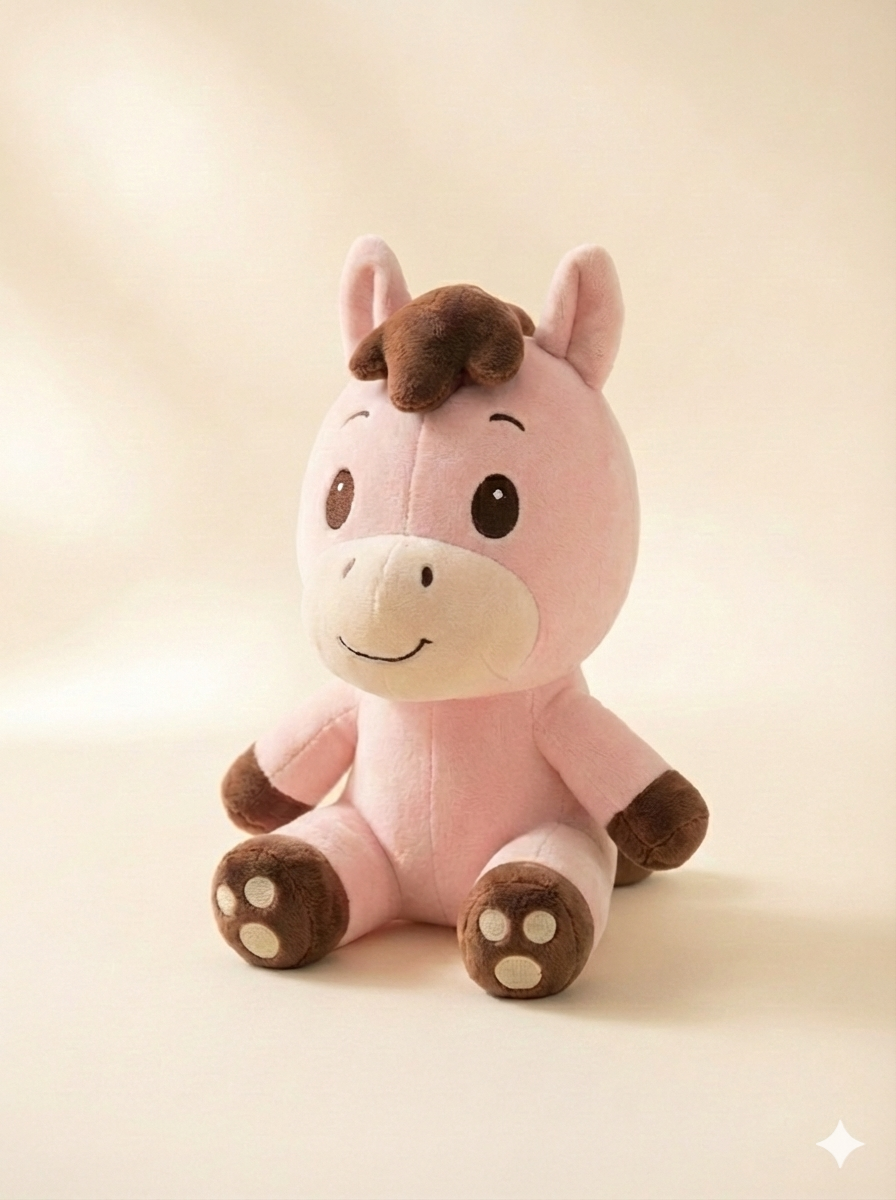
A. Voice recognition doesn't work during music playback. To stop the music, turn the device power switch OFF, then back ON.
A. Joy cannot listen while it is speaking. Wait until Joy finishes talking before responding.
A. Turn the power switch OFF and back ON.
After reconnecting to the server, Joy will repeat the verification code.
A. If you say it too fast, it may not register. Try saying "Hi" (pause 0.5s) "Joy" with a brief pause in between.
A. Background noise (TV, music, etc.) can interfere with recognition. Try talking to Joy in a quiet indoor environment.
A. Turn the device OFF and back ON, then press and hold the [Lightning] button for 3 seconds again to re-enter pairing mode (STEP 3).